
Adding a second monitor to your Fusion work space

Ever since I started using Fusion (over 10 years ago now … how time flies ..) I had a single wide screen Dell U2913WM 29″ monitor (2560 x 1080). This is a really nice screen to use and has lots of interface options including a Dell Display port (aka HDMI). When using Fusion it gives acres of working space. The U2913 can be picked up on EBay for a reasonable cost and this size and aspect ration makes it well worth the investment.

The frustation with single monitor working is the need to minimise Fusion if you want to dive off to do something in another app.

Lurking in the corner of my office was an old Dell monitor that only had VGA and a DVI as connector options. I wondered at the possibility of using it on my new GEEKOM mini PC which has two HDMI outputs. To my surprise I discovered that you can buy cables and also dongle adapters to allow both VGA and DVI to connect to a HDMI output (how does that work I wonder ?).

I orderd a DVI to HDMI dongle from Amazon and now have the U2913 as the main activity screen and the old Dell as the side activity screen via the DVI to HDMI dongle. This dual screen working is relatively easy to set up in the Windows display options but can be a bit confusing until you get your #1 and #2 screen selected correctly. (I intially had my mouse disappearing off the left side of the big screen and reappearing from the right hand side of the small monitor).

What a joy to have two screens. You can be deep into Fusion on the main large screen and then dive off to do a quick websearch on the other. This has had almost the same impact on my way of working as when I added my 3DConnexion SpaceMouse.

If you have a second screen gathering dust under a bench check it out for possible use. Even an old TV with HDMI interface can be pressed into service . If you don’t have a screen handy there are lots of old interface style ones on EBay at silly prices.

Go two screen ! You won’t regret it.

Links to similar or related post are listed below : –

Fusion Tips using 3D Connexions SpaceMouse

You can buy the 3DConnexion SpaceMouse and CADMouse combination as a single package.   If you haven’t got a SpaceMouse you are missing a major enhancement to your pleasure while using Fusion.  It’s worth every single penny.

The SpaceMouse is a 3D manipulation mouse and the CADMouse is just a conventional mouse.   Originally when bought as a package they shared a common dongle.  I found that servicing the two devices simultaneously via one dongle led to a laggy experience.   The new versions are Bluetooth connected and are not affected in this respect. If you are considering getting one (and you should) then keep an eye on EBay.

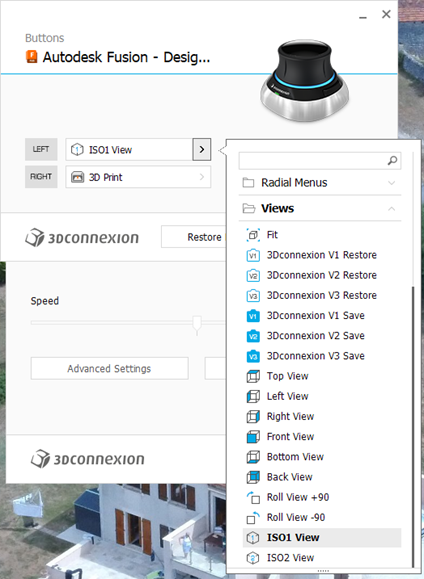
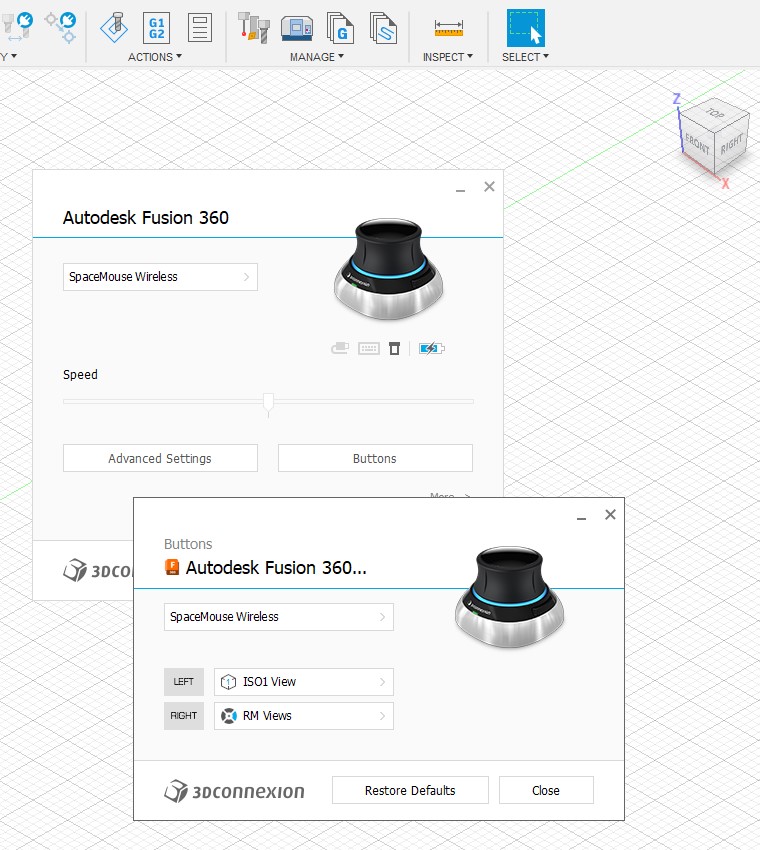
There are two programmable buttons on the basic SpaceMouse which can be preset to shortcut functions.  I have my left hand button set to ‘ISO-1 view’ which means I can quickly reset the modelled object on screen to its home view.  You know how it is when you get totally disorientated when spinning and zooming …. Note that there are more complex versions of SpaceMouse with loads of buttons but this would be asking too much of my memory.

To set up the buttons you need to be in the Fusion Design screen.  The 3DConnexion software ‘knows’ what application you are using and which module in the application so this is important.  In a wider sense this allows the SpaceMouse to be customised specifically to every application you are using on your machine.  (Google Earth fly-by is fun with the SpaceMouse).   

To access the settings menu, click on the right hand end of the Windows taskbar and then right click on the 3DConnexions logo to open the Settings menu.   This will bring up the following menu stack. Note that you must have the Autodesk Fusion – Design… as the title.   The available button options are specfici to each of the other Fusion modules. For example I have two other functions set for when I am in the Electronics PCB design module.

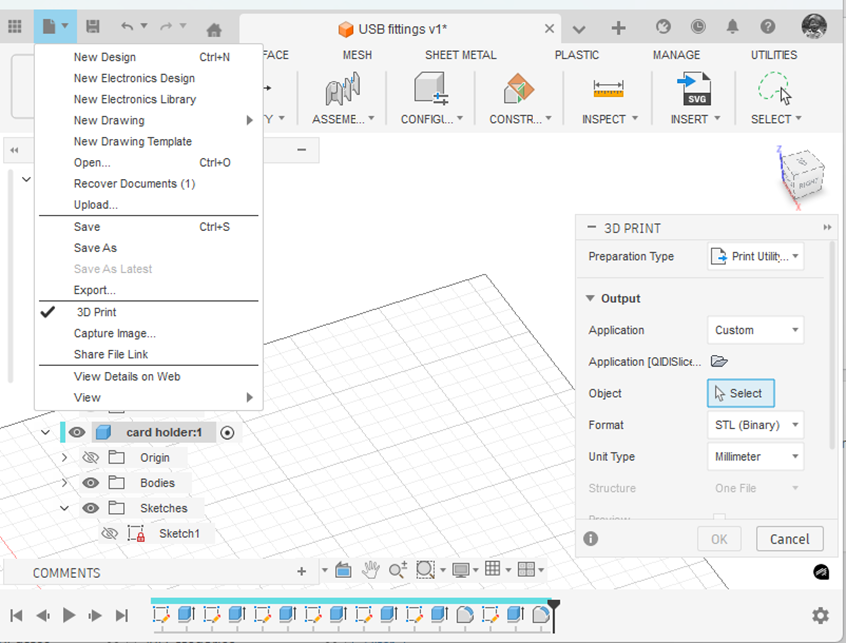
If I right click the SpaceMouse button this takes me to the 3D print submenu in Fusion.   This is the same as clicking on the File menu in Fusion and clicking 3D Print.   This will bring up the following 3D print sub-menu.

(Side comment – if you haven’t discovered it yet … the ‘House/Home’ icon shown at the end of the top menu takes you to a wonderful full page view of all your recent modelling activity. Yes I know it has probably been there ages. I always was a slow developer but what joy when I found it).

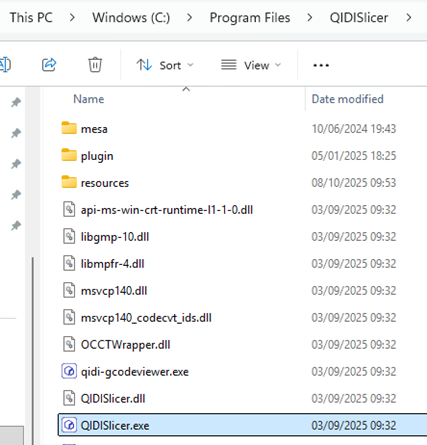
Note that I have the Application box set to ‘Custom’ and the Application folder below this is pointing to the QIDI Slicer EXE file which is found in Explorer as below.  Note this is in ‘Program Files’ and not ‘Program Files (x86)’.

Click on the little folder icon in the sub-menu and navigate to and highlight the .EXE file location.  You will now have a direct boot to the slicer software you are using.  This will be activated either from the File menu or your SpaceMouse programmed button.

Have fun !

Links to similar or related post are listed below : –

3Dconnection SpaceMouse menu changes

It is sometime since I looked at the SpaceMouse programmable menu options for Fusion 360. I only have two programmable buttons on my mine. I don’t think my brain is now capable of retaining any more than two button options. I struggle just remembering the keyboard shortcuts beyond Extrude and Dimension. The left SpaceMouse button I have set to reset the ISO ‘home’ view and the right hand one was set to the ‘change views’ pallet.

I recently upgraded my SpaceMouse driver to 10.8.17 and on checking the Fusion 360 button options I see there is now one for directly triggering the 3D print sub menu. There also seemed to be far more button options which I don’t remember seeing there before. As a result I have now reset my right button to initiate 3D print. The question is will I remember it is there ?

If you are a Fusion 360 user and haven’t got a SpaceMouse you are missing out on a whole new world of Fusion efficiency. It is a joy to use and does not take long to learn to manipulate. You could drop a hint for Christmas …. or you could look on EBay where there are lots for sale. Why people are selling them beats me.

Links to similar or related post are listed below : –

3Dconnexion Spacemouse has better Fusion 360 integration

I had a mailer this morning from 3Dconnexion to say that their Spacemouse has now got better integration with Fusion 360.

One of my long standing frustrations when using Fusion 360 is that there did not seem to be a short cut or macro to provide the equivalent of using your right hand mouse to click on ‘Home view’.   This is desirable when you have flipped and spun your model and just want a single action to reset the view to your starting position.

It appears that the 3Dconnexion Spacemouse now provides this and it can be associated with one of the two buttons on the device.   You have to go to Settings/Buttons/Views and then select ‘ISO1 View’

Note that you have to set up the use of the two Spacemouse buttons for each Fusion module i.e. once in the Modelling module and once in Manufacturing module.

Attached below is a write up of the process.

SpaceMouse-Home-view-with-Fusion-360

Similar or related subjects : –

Jerky Mouse Effects with 3D Connexion SpaceMouse and CadMouse used together

Quite some time ago I posted about the fact that I had bought a package deal of the wireless 3D Connexion SpaceMouse and CadMouse devices.   Since then I have come to cherish the SpaceMouse and would be lost without it.   It makes modelling in Fusion 360 an amazing experience.

3DConnexions Space Mouse

Since using this combination I had been experiencing an irritation with the CadMouse lagging and twitchy/jerky in its action.   This is not always present every time I use the combination of these two devices but you could guarantee it would raise its head when I was in a rush to finish a design.   There has never been a similar issue with the SpaceMouse.   I had searched the forums and tried adjusting various graphic parameters but to no consistent result.

The two devices when bought as a package share the same USB wireless dongle.   Clearly the pair would be timesharing this data link so I thought this might be a data bandwidth issue.  I transferred the dongle to a high speed USB port (the ones with the blue insert).   I can’t say this helped or at least there did not seem to be a correlated improvement with this move.

Of late I have switched the CadMouse off completely and reverted to my Logitech M705 wireless mouse with its associated USB dongle.   Fingers crossed this seems to have solved the problem.  The Logitech behaves well and is responsive to my mouse movements and there is no impact on the SpaceMouse when working on its own into its USB dongle.

Time will tell.

Similar or related subjects : –

Verified by ExactMetrics